

Carbonio Chats#
The Carbonio Chats app provides a fast and convenient way to communicate and collaborate from your mobile device. You can use it to exchange instant messages, share files, search conversations, organize group chats, and participate in video meetings.
The app also provides enhanced capabilities designed to make everyday communication more efficient, including message pinning, instant conversation search, direct sharing from other apps, improved meeting moderation, Picture-in-Picture on Android, and greater resilience when network conditions change.
Creating a New Chat#
You can start a private one-to-one conversation with a colleague.
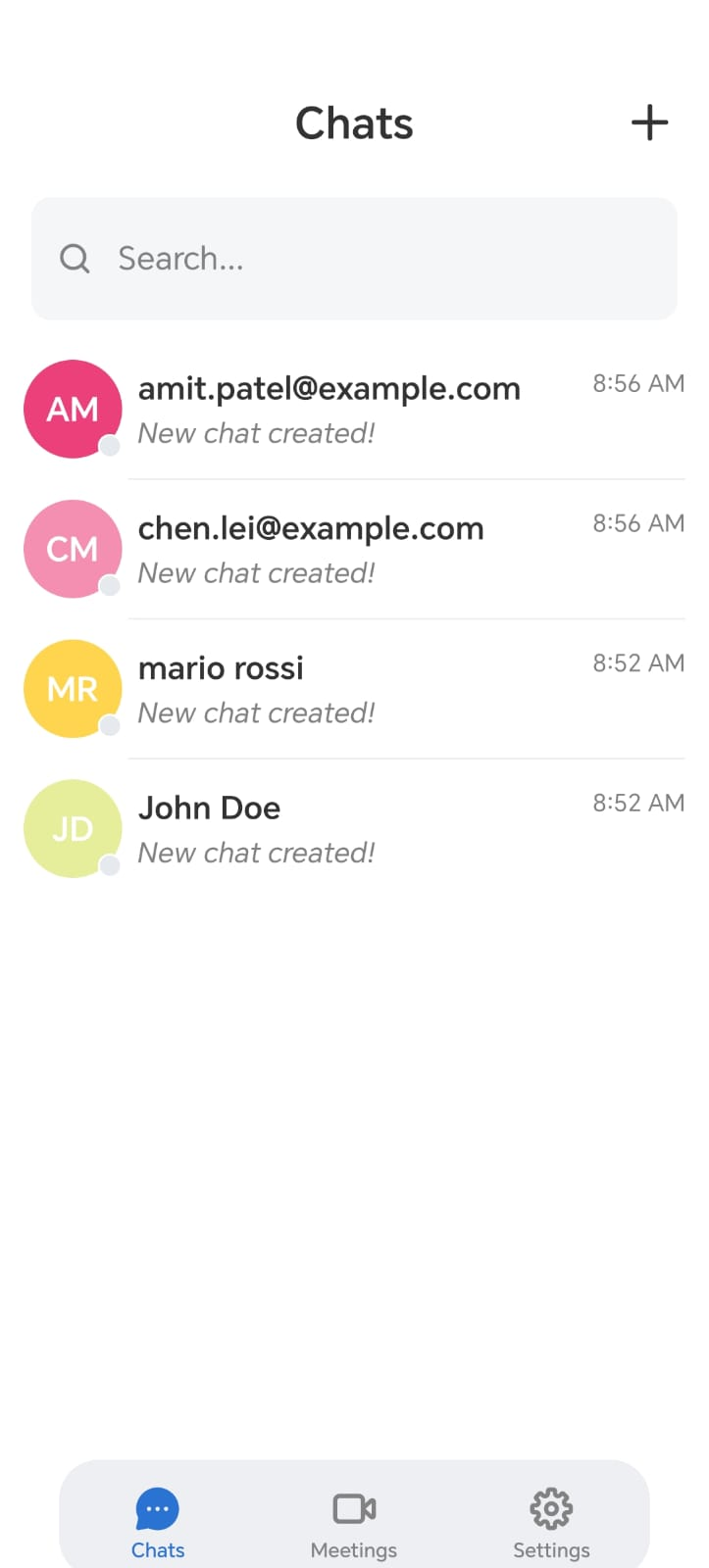
Tap New chat (plus icon).
Select New Group to create a group or Single conversation for one person.
Search for users by name and select them.
The new chat opens and is added to your chat list.
Enter your message in the text box and tap Send.
You can also add emojis, attachments, and other supported content.
Sending Files in Chats#
Carbonio Chats lets you share files from your mobile device or from Carbonio Files.
Send a File from Your Device#
Open the chat.
Tap Attach (paperclip icon).
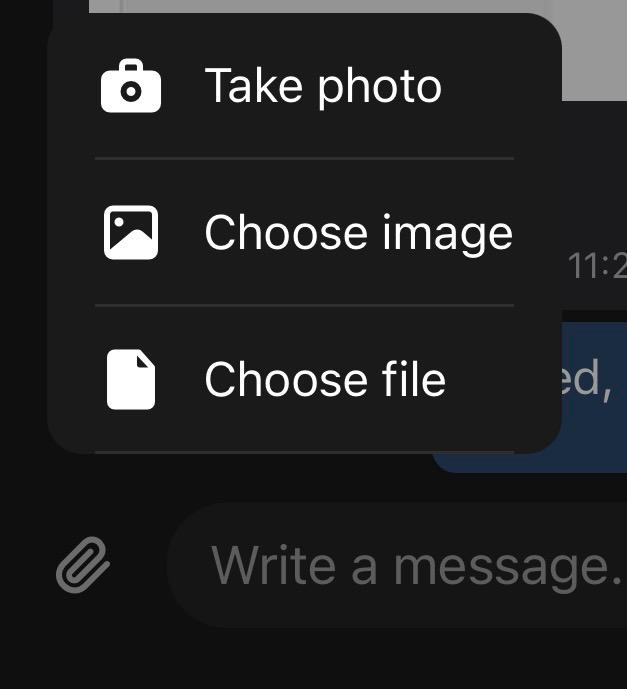
Select Choose file option.
Select the file you want to share.
Tap Send.
Send a File from Carbonio Files#
Open the Files app.
Tap the three dots next to the file you want.
Select Add collaborators.
Choose a permission: viewer, editor, or sharing allowed.
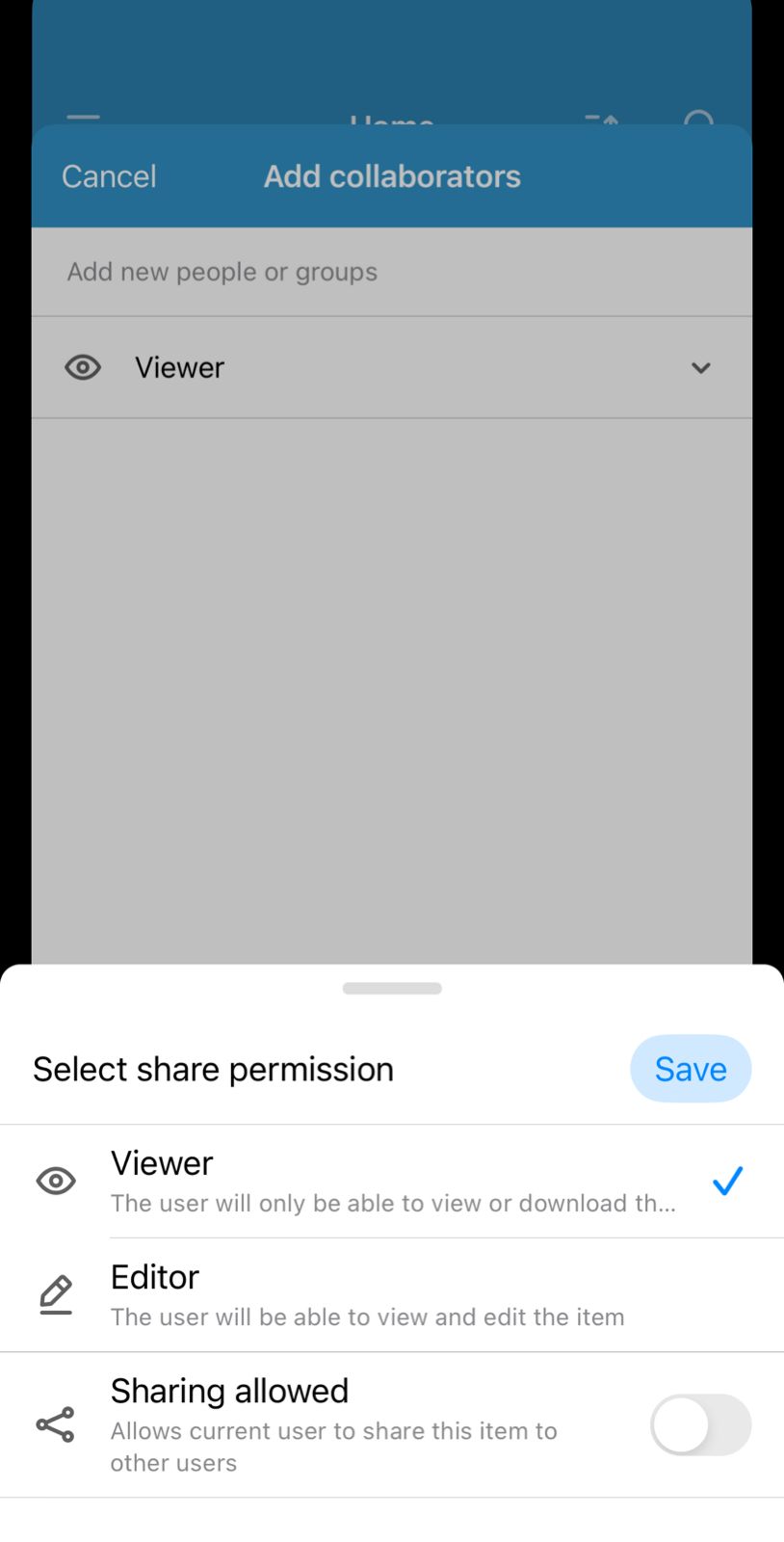
Tap Save.
Edit a Message#
You can edit a message after sending it, when message editing is supported.
Tap and hold the message.
Select Edit.
Update the message.
Send the updated message.
Note
Message editing may be available only for a limited period after the message is sent. The available time limit may vary depending on the application or server configuration.
Forward a Message#
You can forward a message to another conversation when you need to share existing information with another colleague or group.
Tap and hold the message.
Select Forward.
Select the recipient or conversation.
Send the message.
Delete a Message#
To remove a message:
Tap and hold the message.
Select Delete message.
Confirm the action.
Note
Message deletion may be available only for a limited period after the message is sent. The available time limit may vary depending on the application or server configuration.
Pin Important Messages#
Message pinning allows you to keep important information easily accessible within a conversation. You can use pinned messages for important decisions, instructions, links, or other information that participants may need to refer to later.
To pin a message:
Tap and hold the message.
Select Pin message.
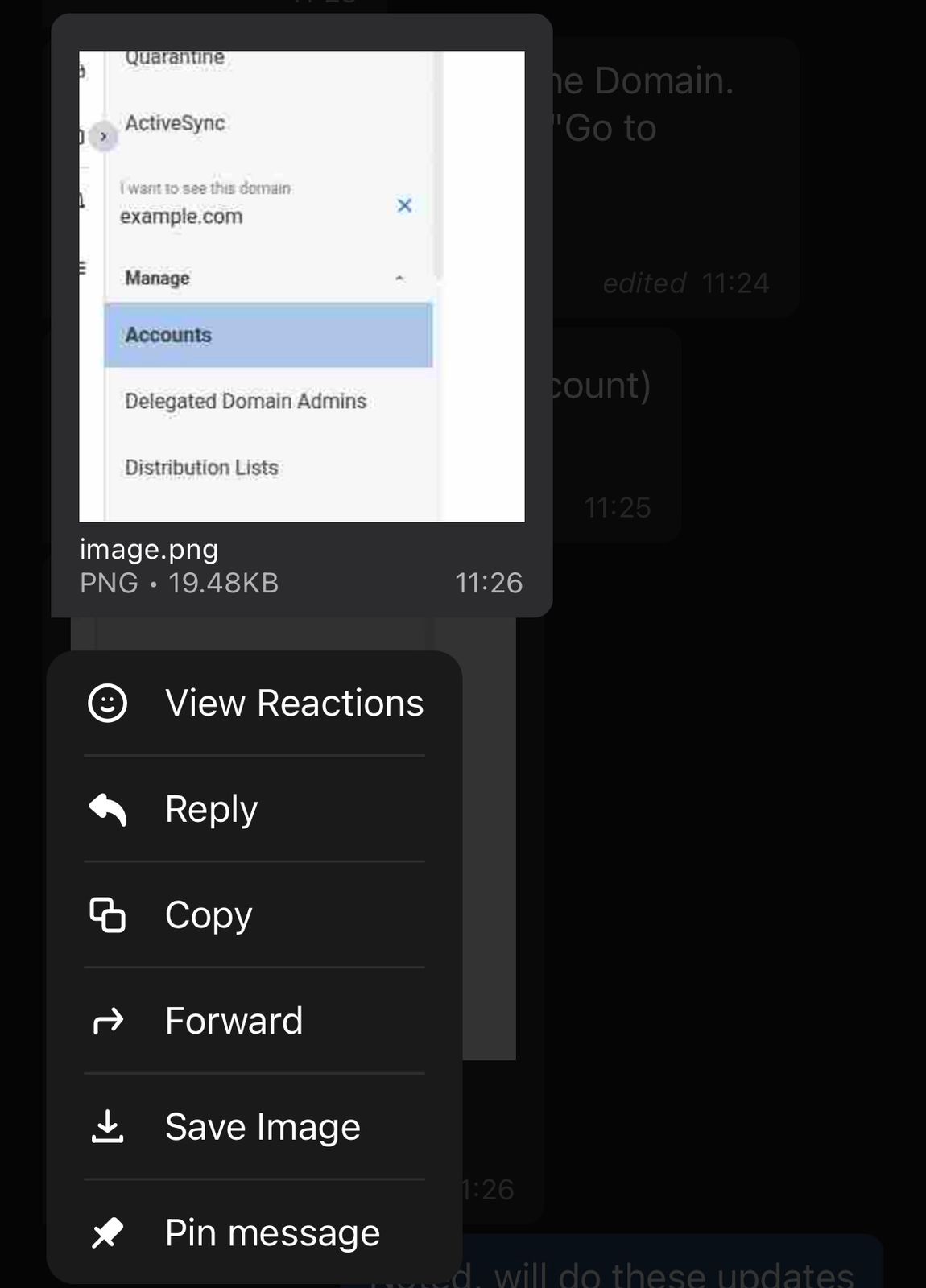
Confirm the action if prompted.
To access pinned messages, open the relevant conversation and use the conversation’s pinned-message or information section.
Note
The exact options available may vary by conversation type and your permissions. You can unpin a message by tapping the pin icon on the pinned message.
View Reactions#
You can view the reactions added to a message to see how participants responded.
Tap and hold the message.
Select View reactions.
Review the available emoji reactions and the participants who selected each one.
To close the reaction details, tap outside the list or use the back option on your device.
Note
The reactions available and the participants shown may vary depending on the conversation and your permissions.
Search Conversations#
Instant user search helps you quickly find a specific person and view their conversations without scrolling through conversation history.
To search for a user:
Open the Search option.
Enter the user’s name or other identifying information.
Review the matching user results.
Select a user to view their conversations and messages.
Use the user’s full name or other specific details when possible to find the right person more quickly.
Mute Notifications for a Chat#
You can mute notifications for an individual chat or group when you do not want to receive notifications for every new message.
Open the chat or group.
Open Chat info or Group info by tapping the information icon or chat name.
Tap Mute notifications.

To receive notifications again, open the same settings and Unmute notifications.
Clear Chat History#
You can clear the local conversation history when this option is available.
Open the chat or group.
Open Chat info or Group info.
Tap Clear history.
Confirm the action.
Note
Clearing chat history may affect only the history displayed on your device and may not delete messages for other participants.
Creating a New Group#
Group conversations allow multiple colleagues to communicate in a shared chat.
Tap New chat (plus icon).
Select New Group chat.
Select the colleagues you want to add.
Tap Next.
Enter a Group Name.
Optionally enter a group description.
Tap Create.
A group requires at least three participants, including you. The maximum is 300.
Add Participants to a Group#
If you have moderator permissions, you can add colleagues to an existing group.
Open the group.
Open Group info by tapping the information icon or group name.
Tap Invite participants.
Select the colleagues you want to add.
Confirm the selection.
If supported, you can enable Show previous conversation history so that newly added participants can access earlier messages.
Remove Participants from a Group#
If you have moderator permissions, you can remove a participant from a group.
Open the group.
Open Group info.
Tap the participant’s name.
Select Remove from conversation.
Confirm the action, if prompted.
Leave a Group#
To leave a group conversation:
Open the group.
Open Group info.
Tap Leave.
Confirm that you want to leave the group.
After leaving, you will no longer participate in the group conversation unless you are invited again.
Video Meetings and Rooms#
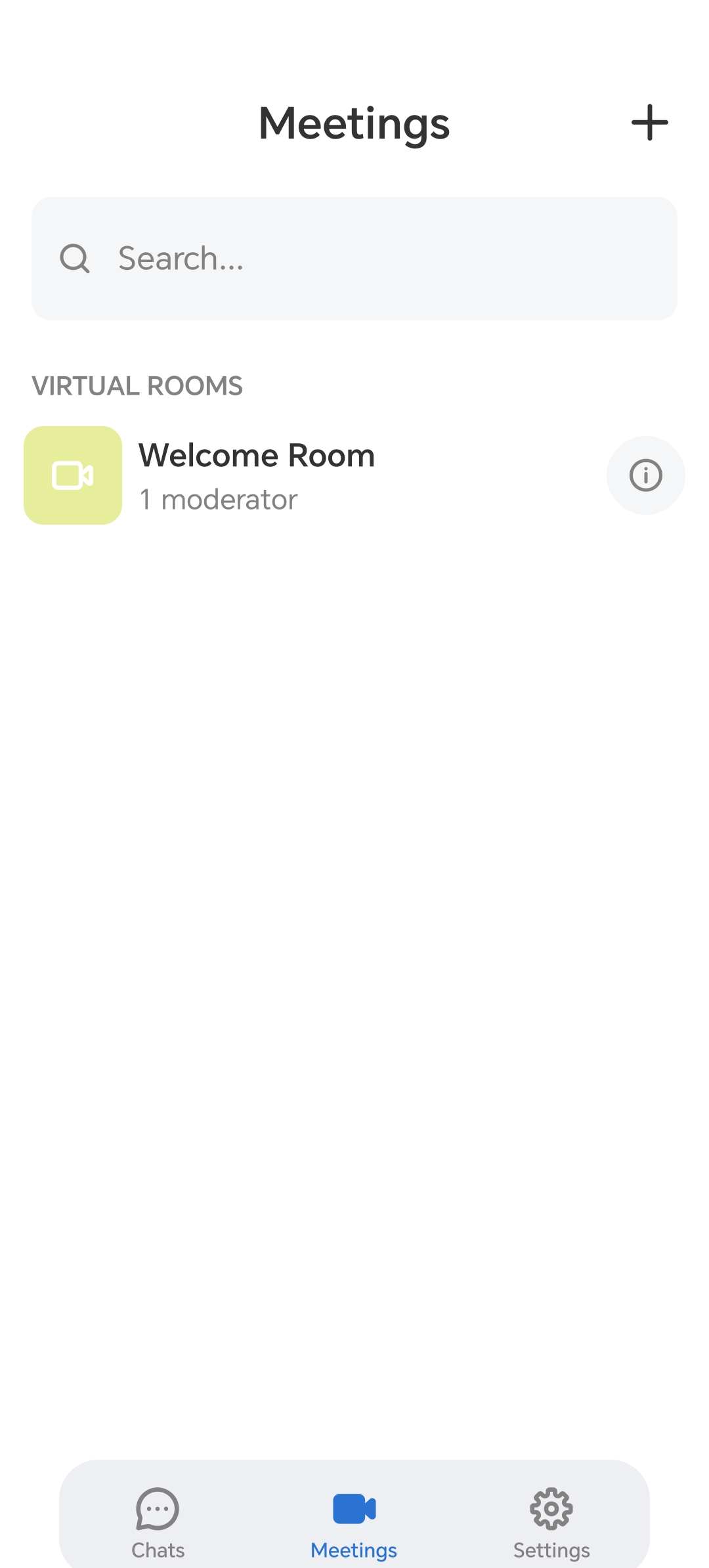
Carbonio Chats also provides shared rooms for chat and video meetings. Rooms can be used as persistent spaces where participants can communicate and join meetings using a shared link.
Creating a New Room#
To create a room:
In the Meetings tab, tap the plus icon.
Enter a name for the room.
Tap Create.
Depending on your permissions, you can use the room to:
Start or join video meetings.
Communicate with participants through chat.
Copy the room link and share it with other participants.
Entering a Room#
To join an existing room:
Open the Meetings section or tab.
Select the room you want to enter.
Tap Join room.
You can then participate in the room’s chat or join an active video meeting.
Inviting Participants to a Room#
You can invite participants by sharing the room link.
Open the Meetings section or tab.
Select the room.
Tap Copy link.
Share the link with the intended participants.
Participants can use the shared link to access the room, subject to the room’s access and permission settings.
Settings#
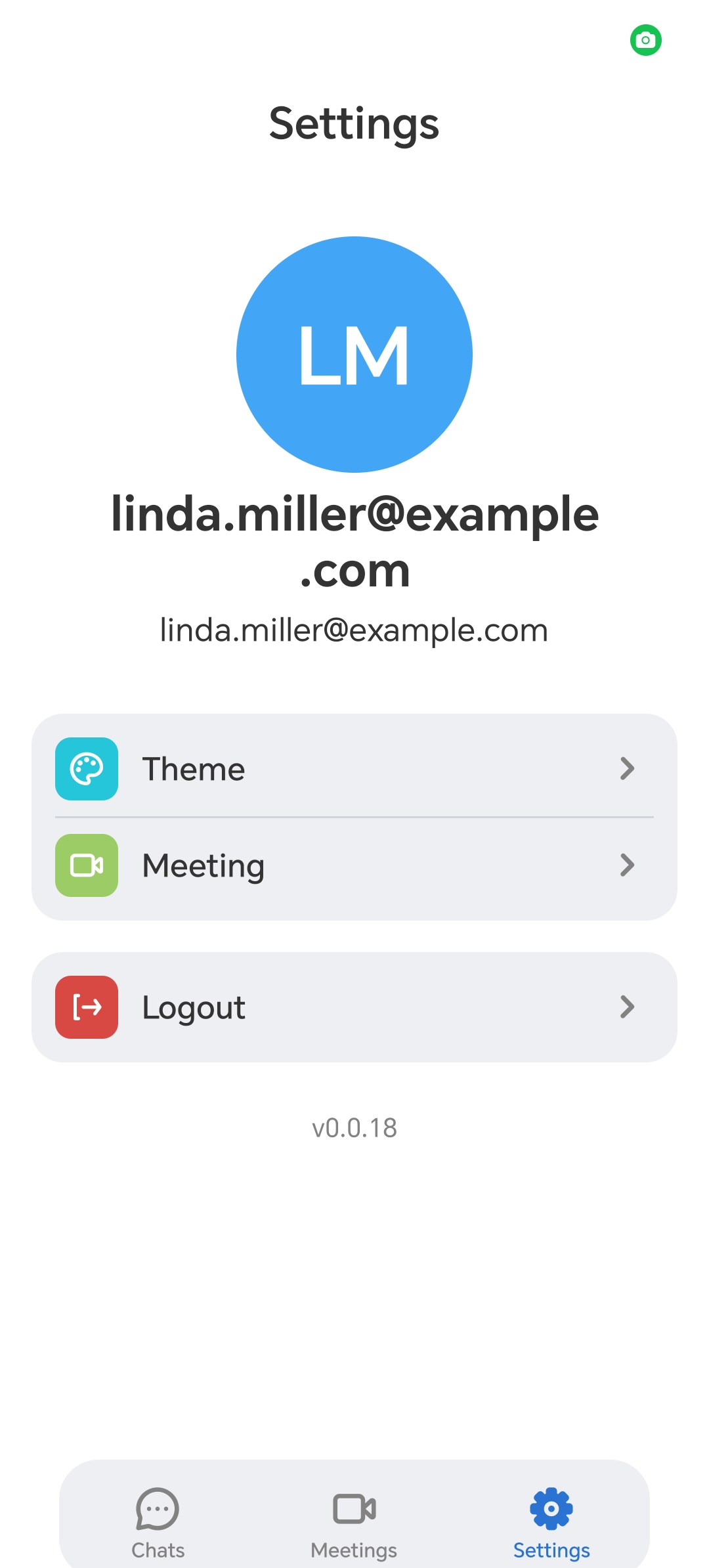
The Settings screen lets you manage account preferences, meeting options, and logout.
Theme#
Tap Theme.
Select or change the application theme.
Meeting#
Tap Meeting.
Open the meeting configuration screen.
Logout#
Tap Logout.
You will be logged out and returned to the login screen.
Starting a Video Call with One Person#
You can start a video call directly from a one-to-one conversation.
Open the chat with the colleague.
Tap the Camera icon.
Wait for the participant to accept the call.
Once connected, you can use the available meeting controls during the call.
Enhanced Meeting Moderation#
Meeting moderators have access to additional controls to help manage participants and maintain an organized meeting. Depending on the meeting configuration and your permissions, moderation controls may include managing participants and controlling how participants interact during the meeting.
Note
Available moderation controls can vary depending on your role, meeting type, and server configuration.
Picture-in-Picture on Android#
On supported Android devices, Picture-in-Picture (PiP) allows you to continue viewing a video meeting while using other applications.
To use Picture-in-Picture:
Join a video meeting.
Leave the meeting view or use the device’s Home action.
If supported, the meeting continues in a floating PiP window.
Use the floating window to continue viewing the meeting while accessing other applications.
Note
Picture-in-Picture availability depends on the Android version, device capabilities, and application support.
Improved Network Resilience During Meetings#
Carbonio Chats is designed to provide a more reliable meeting experience when network conditions fluctuate. When the network connection becomes temporarily unstable, the application can better handle changes in connectivity, helping reduce interruptions during meetings. This is particularly useful when moving between Wi-Fi and mobile networks or when working in areas with inconsistent connectivity.
Note
The quality of a meeting still depends on the available network connection. Severe or prolonged connectivity problems may affect audio, video, or the ability to remain connected.
Deleting a Meeting Room#
If you have the required permissions, you can delete a meeting room.
Open the Meetings section or tab.
Open the room you want to delete.
Select Delete Room.
Confirm the deletion, if prompted.
Warning
Deleting a room may affect other participants who use the room. Make sure the room is no longer required before deleting it.
A More Connected Mobile Experience#
With these capabilities, Carbonio Chats provides more than basic mobile messaging. You can quickly find important information, keep key messages accessible, share content from other applications, collaborate in groups, and participate in meetings with improved flexibility and reliability. The new React Native-based architecture provides the foundation for these capabilities and enables Carbonio Chats to evolve more quickly as new communication and collaboration requirements emerge.