

Manage an Account Storage Quota#
Administrators can configure the storage quota for individual accounts from the Account Settings page in the Carbonio Admin Panel. You can assign an unlimited quota or specify a maximum storage limit for the selected account.
Storage quotas help administrators control the amount of mailbox storage available to individual accounts. By assigning storage limits, organizations can manage server resources more effectively, prevent excessive storage consumption by individual users, and ensure fair allocation of available disk space. For accounts that require unrestricted storage, administrators can enable the Unlimited quota option.
Configure an Account Quota#
To configure the storage quota for an account:
Sign in to the Carbonio Admin Panel.
Navigate to Domains.
In the search field, enter the required domain (for example,
example.com) and select it.Click Manage and select Accounts.
From the account list, select the email account you want to manage.
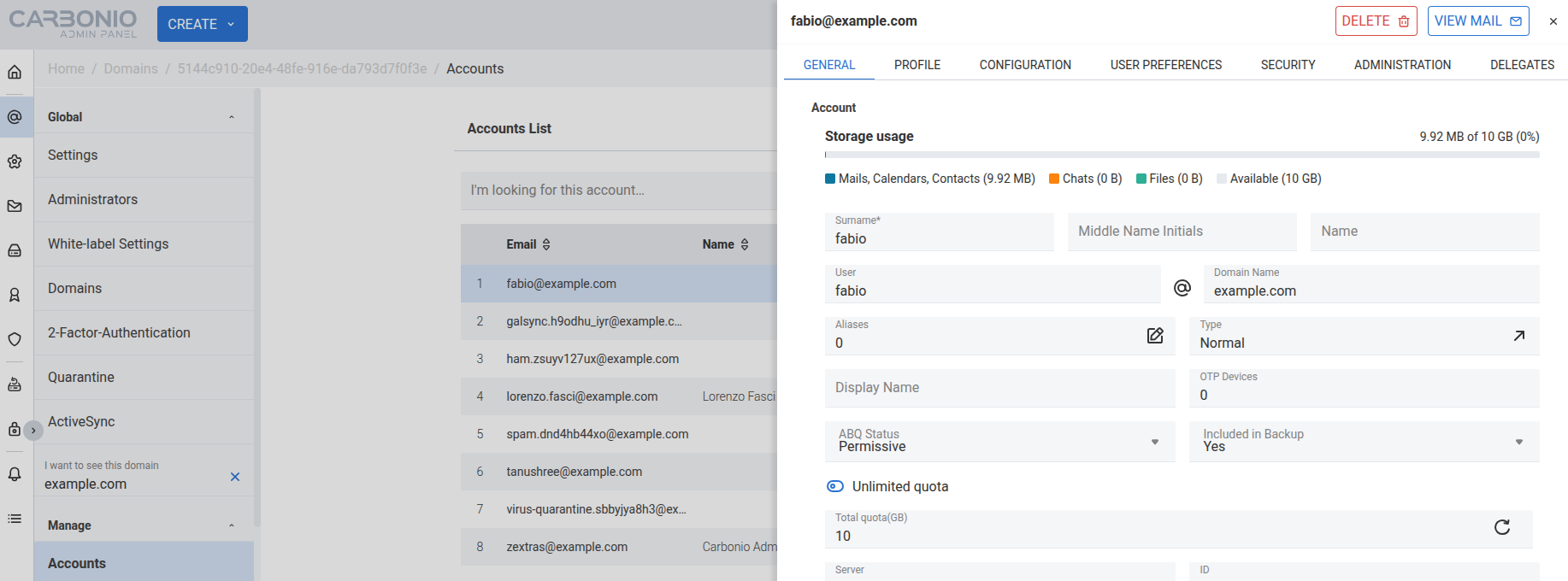
In the account details panel, open the GENERAL tab.
-
In the Storage Usage section, configure the quota:
To allow unlimited storage, enable the Unlimited quota toggle and click Save.
To assign a storage limit, disable the Unlimited quota toggle, enter the required value in the Total quota (GB) field, and click Save.
Note
Click the Restore icon next to the Total quota (GB) field to reset the quota to its inherited default (empty) value.
-
After saving the changes, you can:
Click View Mail to open the mailbox.
The configured quota is displayed in the mailbox storage information.
The updated quota is applied immediately.
Upgrade Behavior#
Existing account quota settings are preserved during releaseupgrade. Any quota configured before upgrading remains unchanged.